How do I record my calls?
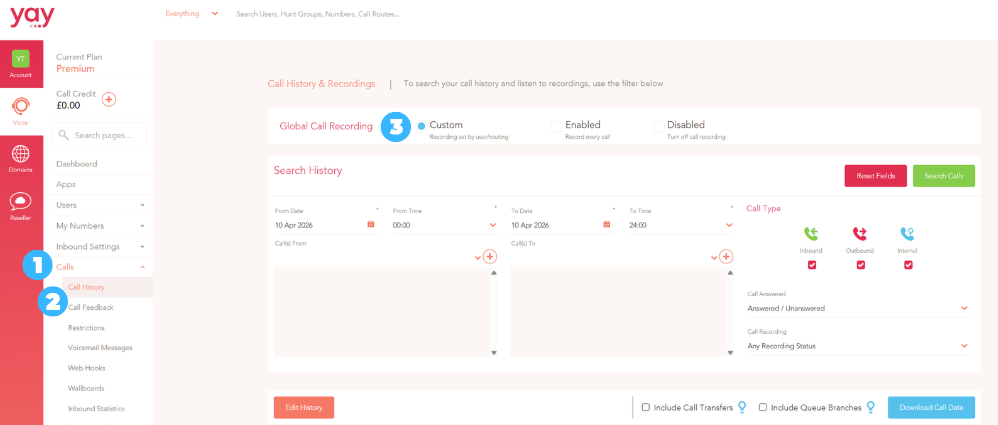
To set your call recording preferences, follow the steps below in the Dashboard:
1. Go to Voice > Calls
2. Then select Call History
3. Use the options at the top of the Call History screen to set your recording preferences.
You can set call recording to Enabled in order to ensure every call is recorded. Alternatively, you can set recording to Disabled to switch it off for the entire account, or set it to Custom so that you can enable or disable call recording for Users and Call Routes on an individual basis.
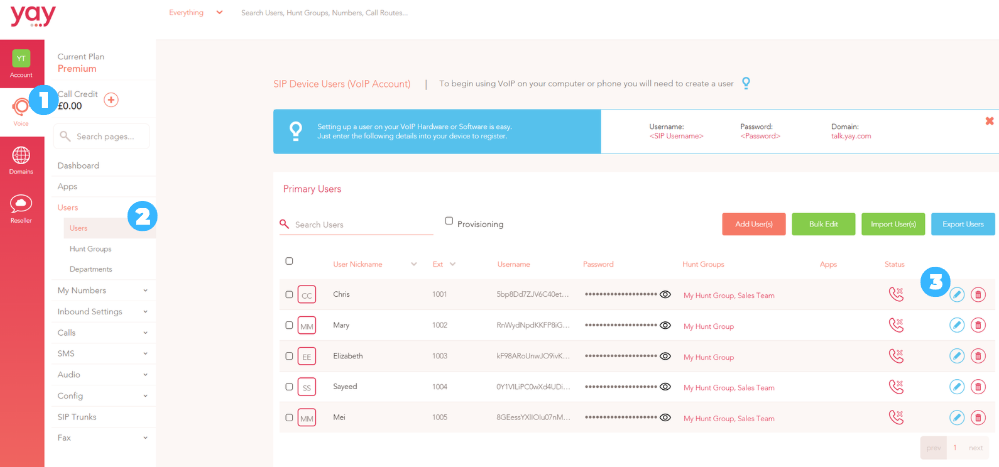
Enabling Call Recording for a specific User:
1. Go to Voice from the Main Menu on the left.
2. Select Users.
3. Click the Edit button (blue pencil) next to the user you like to enable/disable recording for.
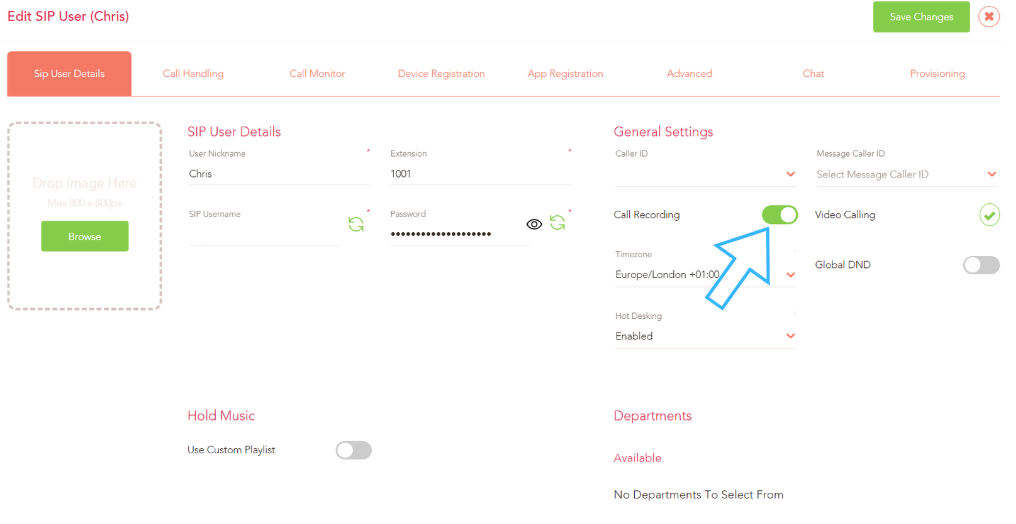
Use the Call Recording button to toggle recording on/off.
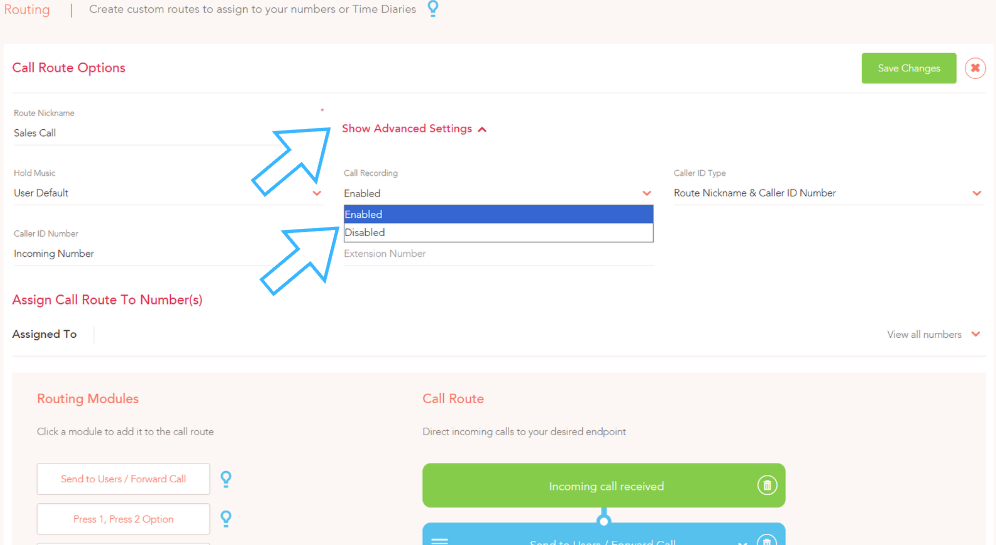
Enabling Call Recording for a specific Call Route:
1. Go to Voice from the Main Menu on the left.
2. Go to Routing in the Inbound Settings sub-menu.
3. Click the Edit button (blue pencil) next to the route that you like to enable/disable recording for.
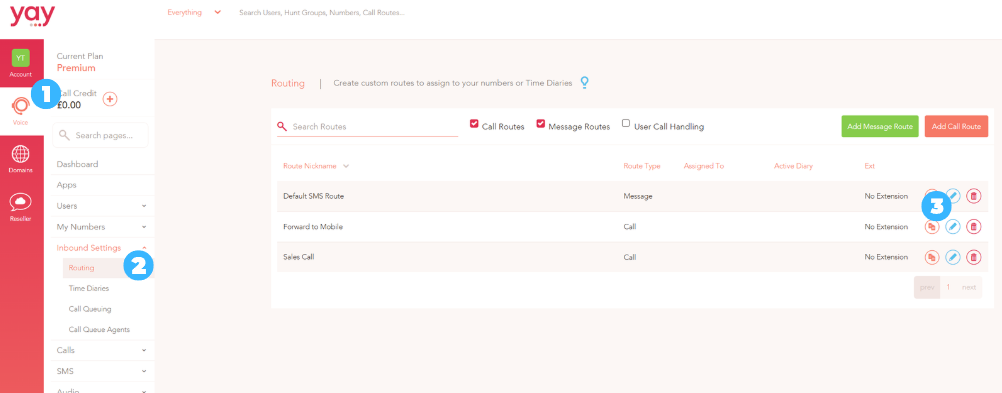
When in your selected call route, click Show Advanced Settings to reveal the Call Recording options.