How do I set up and use Click to Dial with Google Chrome?
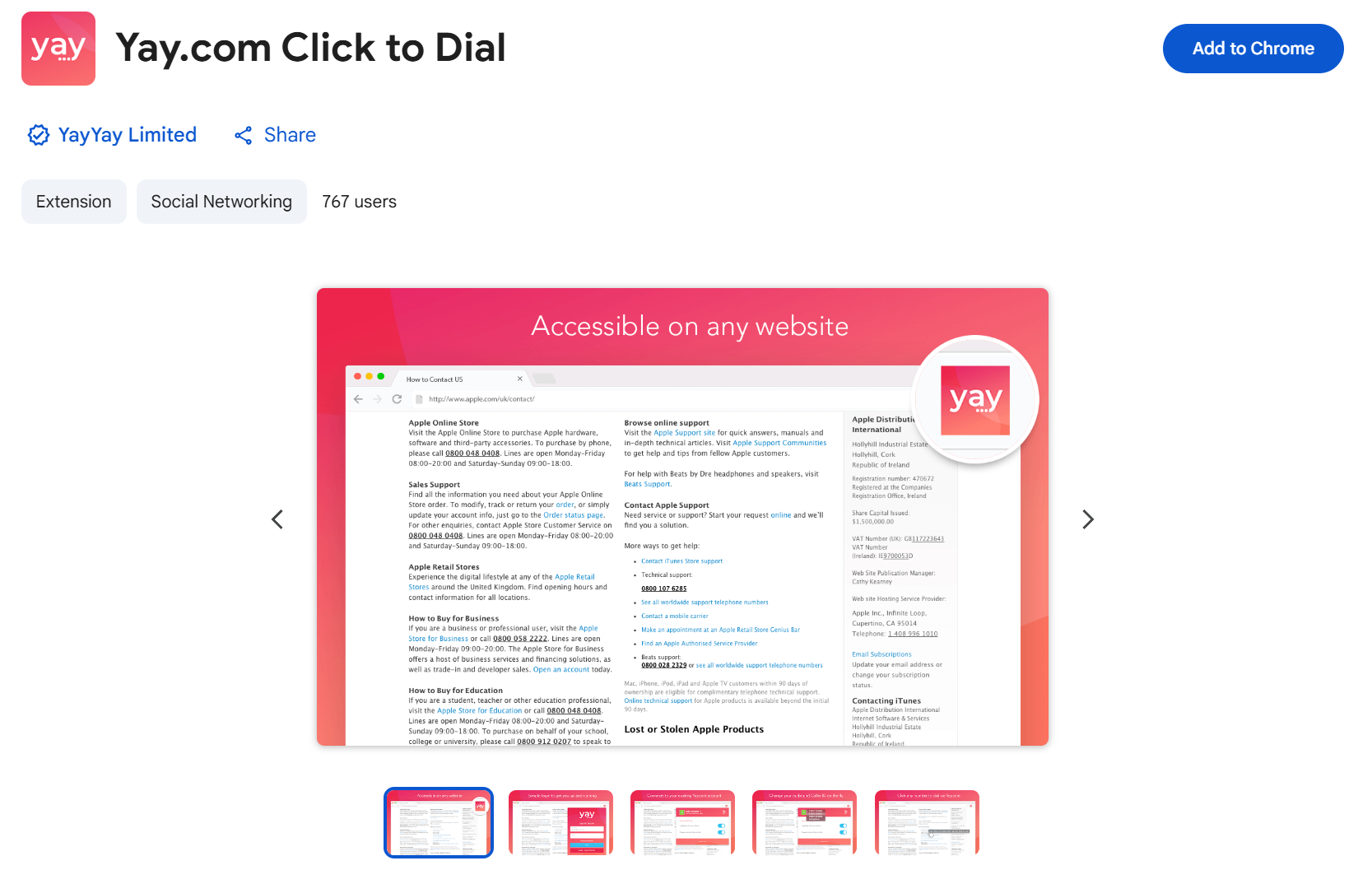
The Yay.com Click to Dial extension can be installed here!
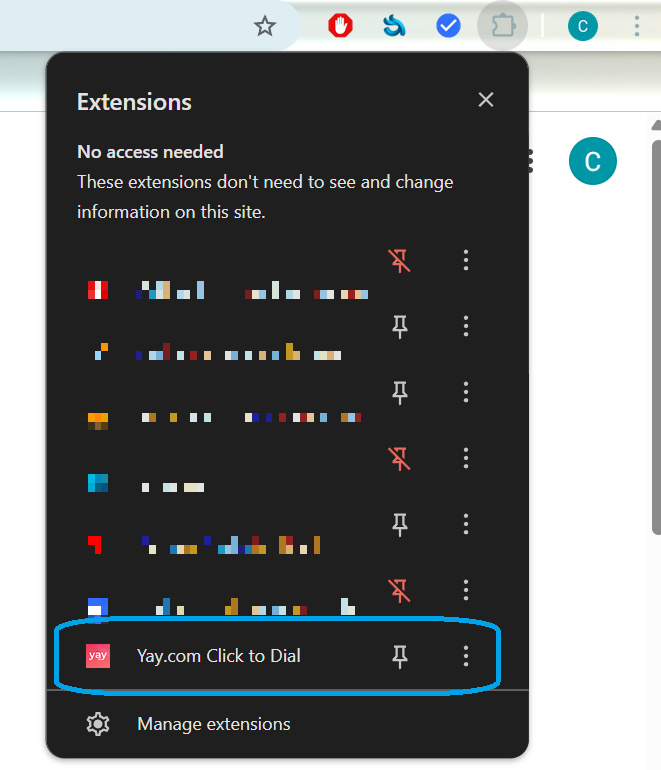
You will then see this appear in your Chrome Extensions:
From here, click the extension to open, and log in with your Yay.com Email and Password. You will then be given the option to select the SIP User you wish to log in as.
Once you are logged in, you will see the following options on the extension:
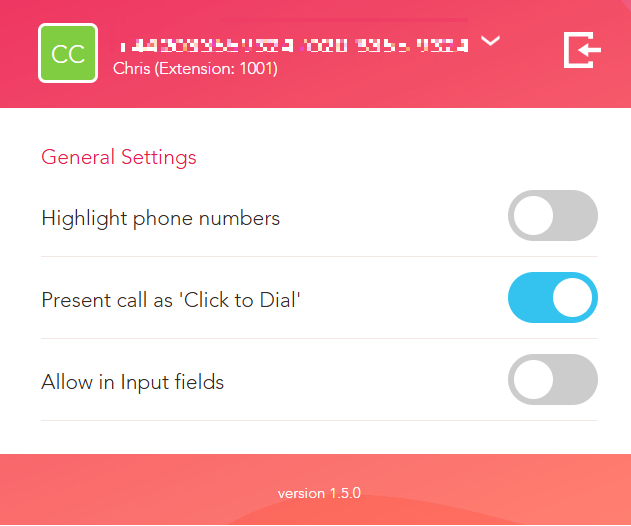
Highlight phone Numbers Toggle:
Enabled will hyperlink numbers you can click to dial
Disabled will disable click to dial
Present Call as ‘Click to Dial’
Enabled will display the “inbound” call on your screen as ‘Click to Dial’, followed by the number you are dialling
Disabled will display the “inbound” call on your screen as the number you are dialling only.
In the app
If you go to Settings > Calls, you will see the option to ‘Auto connect Click to Dial’.
Enabling this will allow the system to automatically accept the inbound call from the Click to Dial and send the outbound call to the number.
With a handset
There is no way to Auto Connect click to dial with a handset, but, if you have a handset connected to your user, it will ring this device when you click on the number you wish to call. To initiate the call, just pick up the receiver!
The Click to Dial extension will save many minutes. Instead of either copying and pasting, or manually typing phone numbers into a desk phone or softphone, you can just simply click to call your contacts.
If you need any further help today, please don't hesitate to contact our friendly support team on 0330 122 6000 or by email!