How do I setup Microsoft Dynamics 365 integration?
This feature enables users to connect their Microsoft Dynamics 365 environment to our platform for secure and efficient synchronisation of contact records.
Key Features:
The integration supports:
- Screen pop
- Contact synchronisation
- Call logging (inbound/outbound)
- Uploading call recording links
- Call feedback integration
Requirements
Microsoft Account - The user must authenticate with a valid Microsoft account.
Dynamics 365 Permissions - The user must have a System Administrator, Global Administrator, or Dynamics 365 Administrator role.
Installation
A guide to install and run the integration with screenshots.
Step 1 - Authentication
To install the integration:
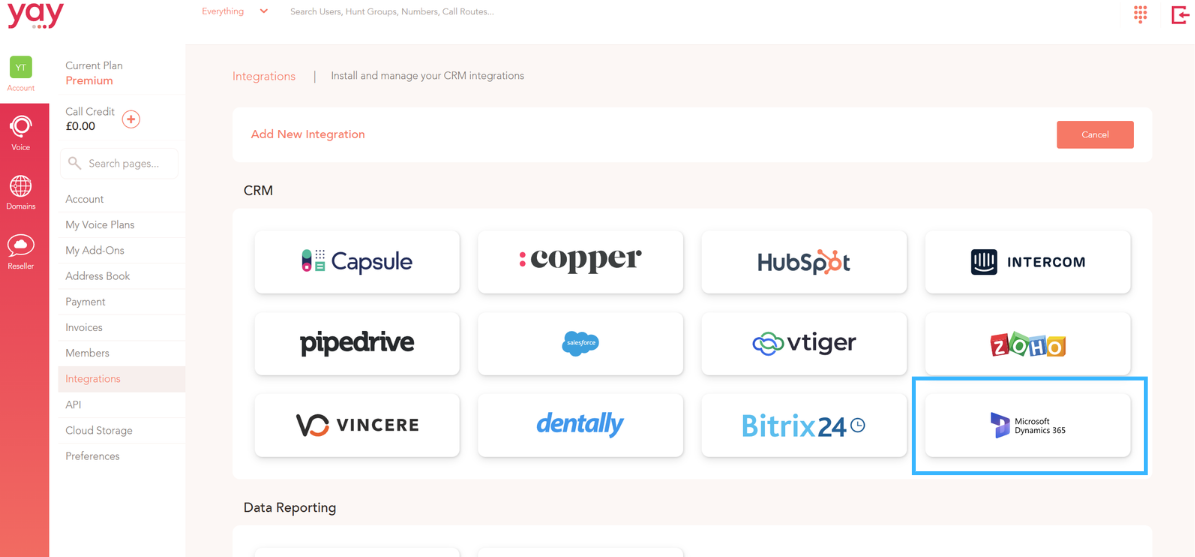
1. Navigate to Account, then click on the integration option where install integration will appear. Locate Microsoft Dynamics 365 under the list of CRMs (shown below).
2. Click to Install the integration.
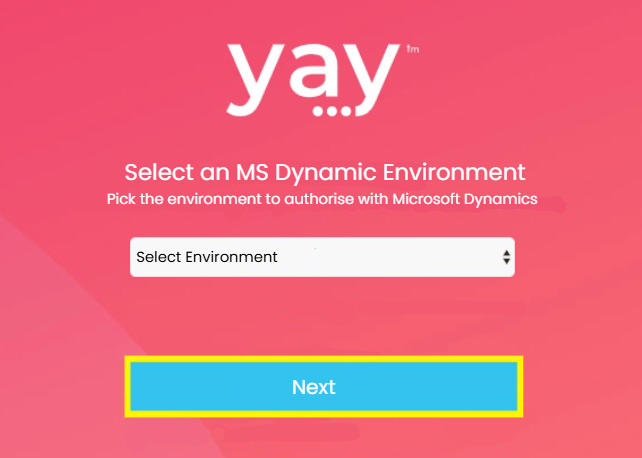
3. Select the required Microsoft 365 Dynamics environment and press Next.
Step 2 - Grant Access within Microsoft
Next, you will be redirected to Microsoft’s sign-in page to authenticate.
Reminder that you will need the necessary permissions to complete this properly, this is in the ‘Requirements’ section above.
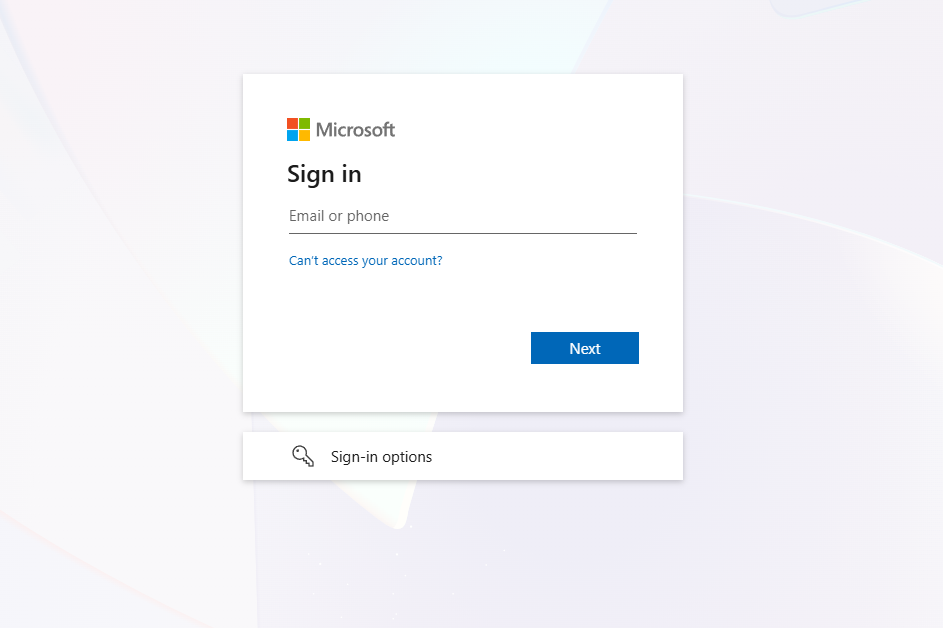
Complete the authorisation process, and you will be directed back to Yay.com, to choose the Microsoft Dynamics environment you wish to integrate.
Step 3 - Choosing Phonebook
After choosing the required Dynamics environment, you will return to a page where you can choose the phonebook in which contacts from Dynamics will be synchronised. You will be able to create a new phonebook, or choose from a list of existing options
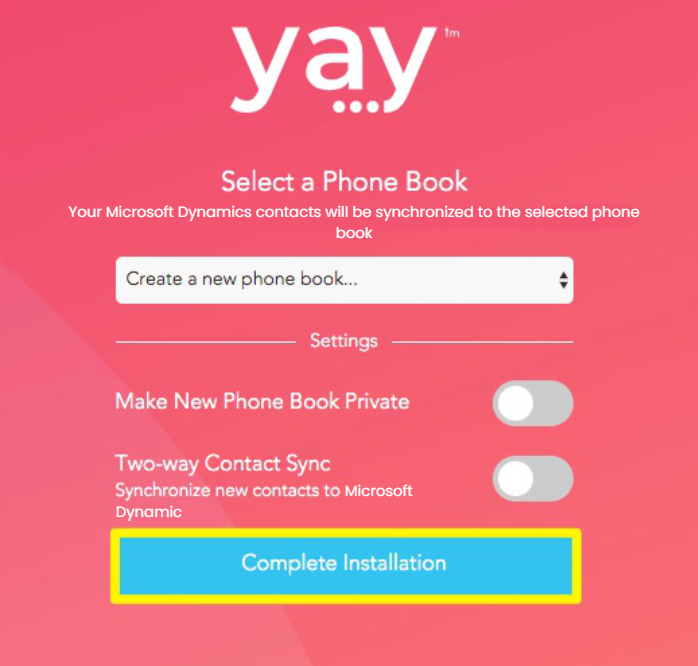
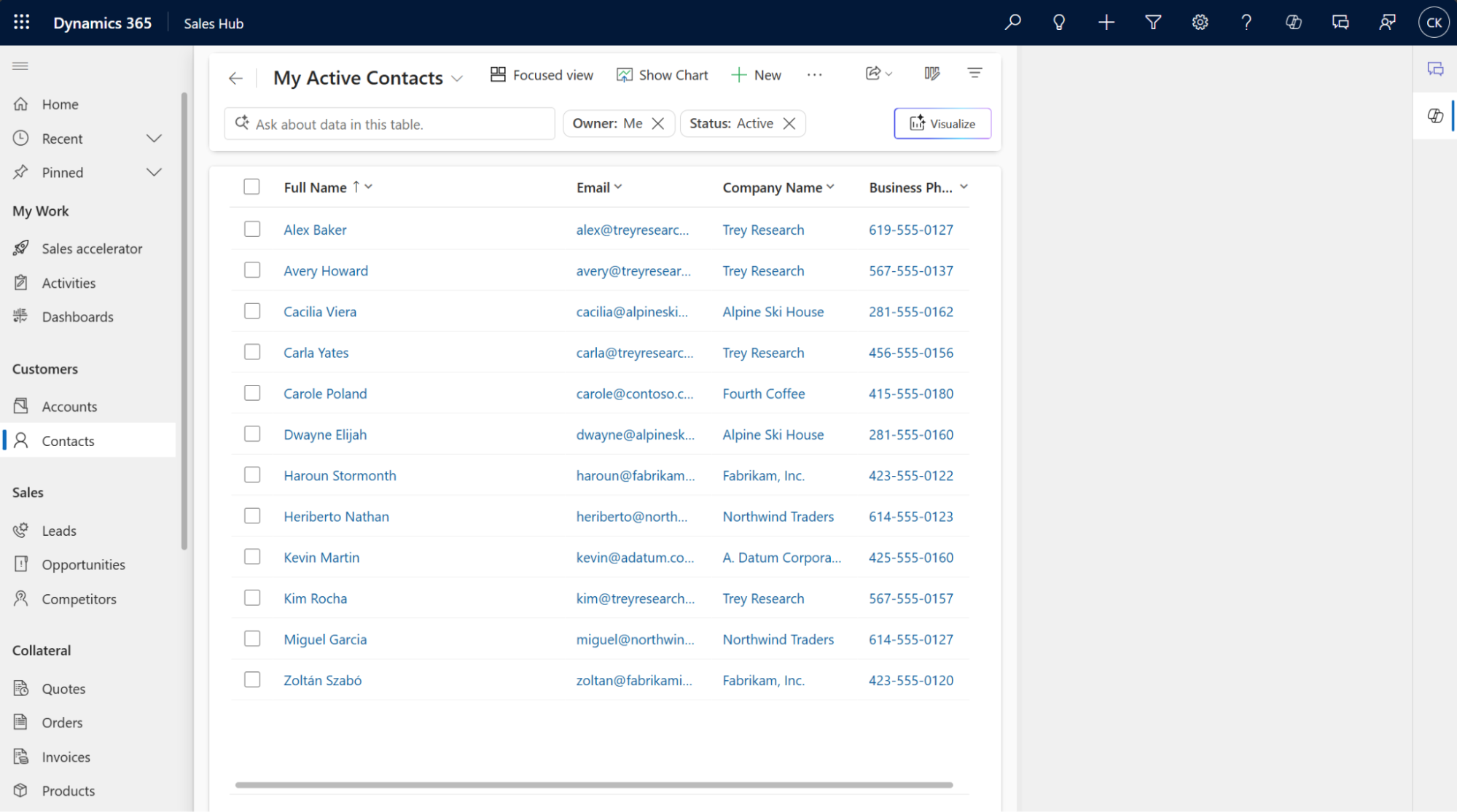
Once Complete Installation is clicked, My Active Contacts page should appear.
Configure Integration Settings
Here it is possible to configure settings of the Dynamics integration
General settings include:
- Upload call recording links
- Upload voicemails
- Upload call feedback
Note: Two-way contact sync is not supported by Dynamics. To remove or edit a contact record, complete this task within Dynamics.

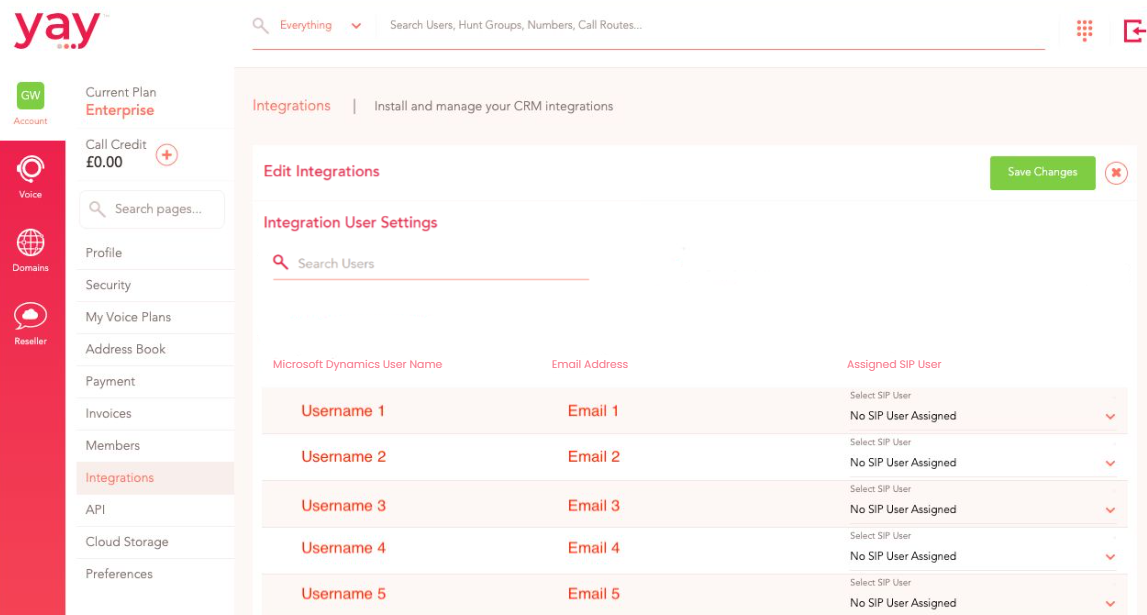
This is also where Microsoft Dynamics users within the account can be linked to a Yay.com user, allowing for better detail within Microsoft Dynamics call logging.