What details do I need to manually provision a hardware device?
We have an FAQ here which states which hardware devices can be auto-provisioned to Yay.com.
However, if you need to manually provision a hardware device, you will always need the following details:
IP addressof the device (In order to log into the web interface)
SIP Username (Found in Yay.com dashboard)
SIP Password (Found in Yay.com dashboard)
Server name (Always ‘talk.yay.com’)
Where do I find my SIP details?
Each of your Users will have their own SIP credentials, which can be assigned to a hardware device.
To find your SIP credentials, log into your Yay.com dashboard, and navigate to Voice > Users > Edit User > SIP User Details.
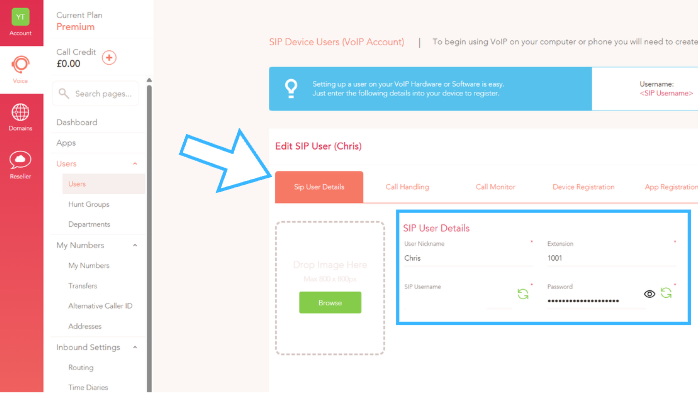
Here you should see the User’s SIP Username and SIP Password. Here, you can change or scramble your SIP Credentials.
It is extremely important not to share your SIP Credentials, in order to avoid them being compromised.
Your SIP credentials are necessary for manually provisioning hardware devices.
Where do I find the IP address of my device?
As long as your device is connected to your network, you should be able to find the IPv4 address on the device itself.
It is in a different place on different devices, however is mostly in the Settings under ‘Network’, or ‘Status’.
If you cannot find the IP address on your device, you can use an Advanced IP Scanner, which will scan any devices on your network, and you’ll be able to see the device (and its IP address).
There are two network scanners that we recommend depending on whether you are Windows or Mac OS. Both are free.
- If you are using Windows then we would recommend Advanced IP Scanner
- If you are using Mac OS then we would recommend LanScan
Once you know the IP address of your hardware device, enter it into a new browser window, and it will take you to the web interface of your device.
If it asks you for a username and password, by default on most devices, these are always both ‘admin’, unless you have changed these yourself.
Then you can navigate to the accounts page where you can provision the device and enter the SIP Username, SIP Password, and Server name.
If you have any questions, please don't hesitate to contact our friendly Support Team on 0330 122 6000, or by emailing help@yay.com.