How do I check my Call History?
The Call History page allows users to view their call logs and manage their call recordings.
Depending on the access they have been given by an administrator, they can either see every internal, inbound, or outbound call that occurred on the account, or only ones relating to their user.
To access this, head to your dashboard and head to Voice > Calls > Call History.
The call recordings will be available within the Call History to download directly to your Laptop/PC, and also to listen straight from the dashboard.
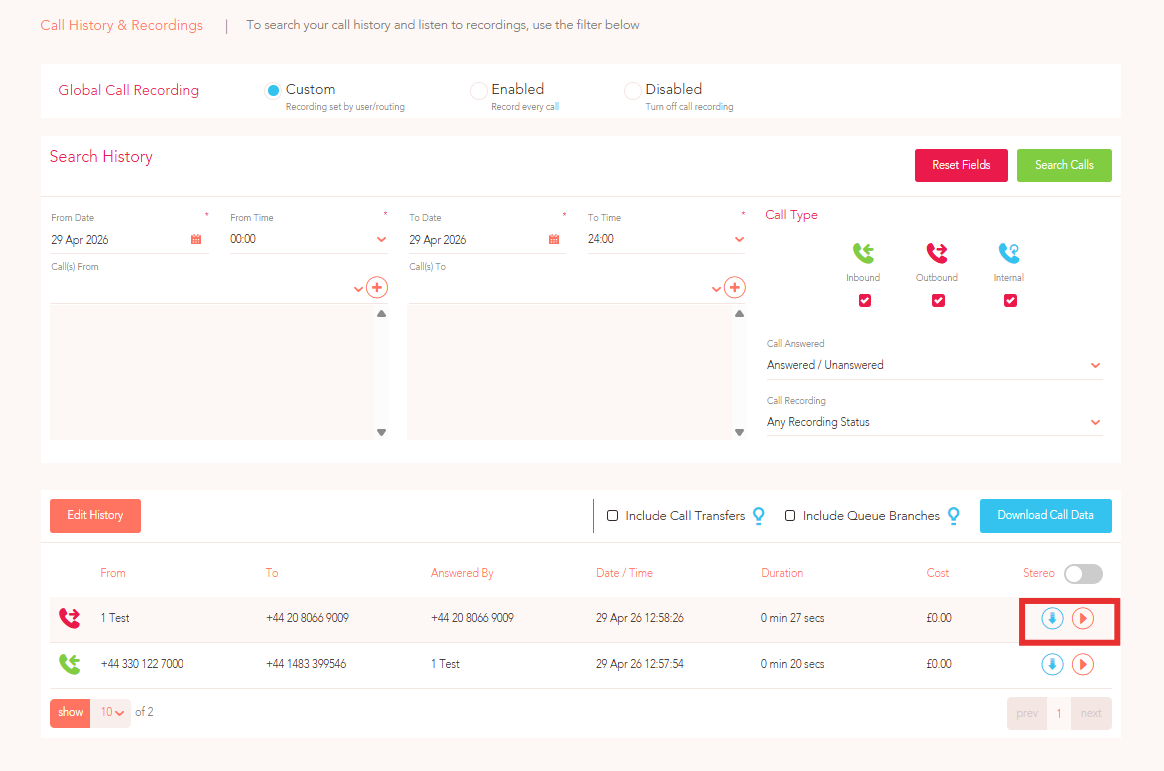
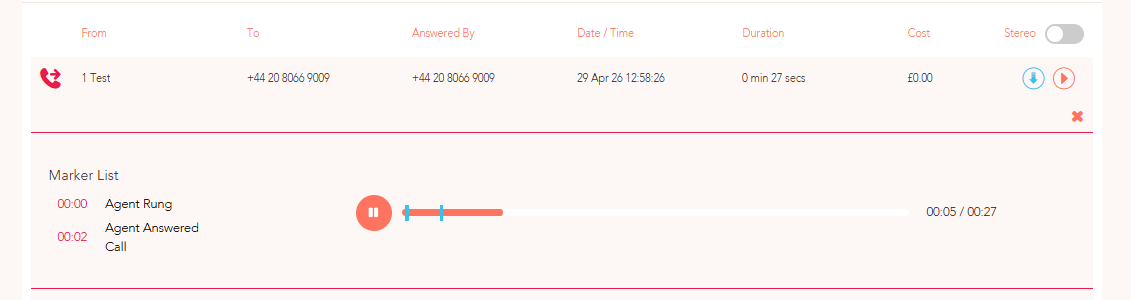
To search for Historic calls, you will just need to enter one or all of the relevant details; Date / Time / Call from / Call to:
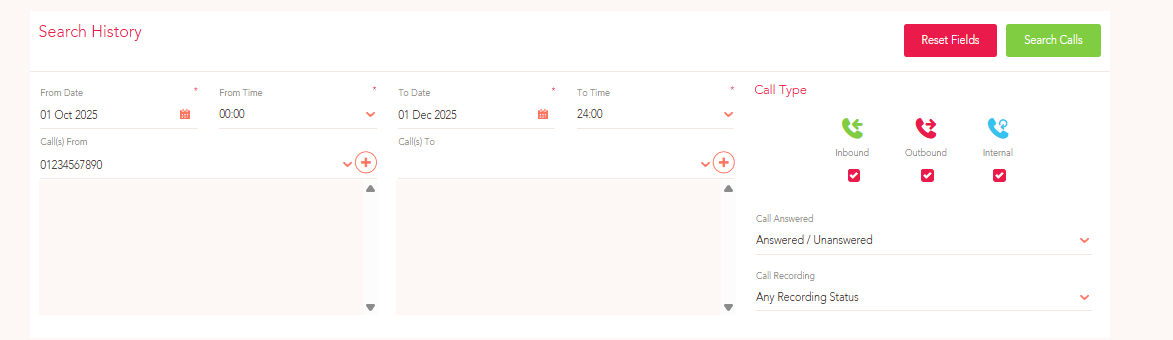
You can filter your search by selecting the direction of the call, and also if the call was answered, unanswered, and / or call recorded.
Another viewable option is for Calls which went into Queues, and calls which were transferred. These can be viewed by selecting the option at the top of the Call logs:

These will subsequently display within the Call logs for you to view:
Call Queues:

Call Transfers:

How to enable call recording:
The Call recordings can be toggled on/off for all external and internal calls from the setting at the top of the Call History page:

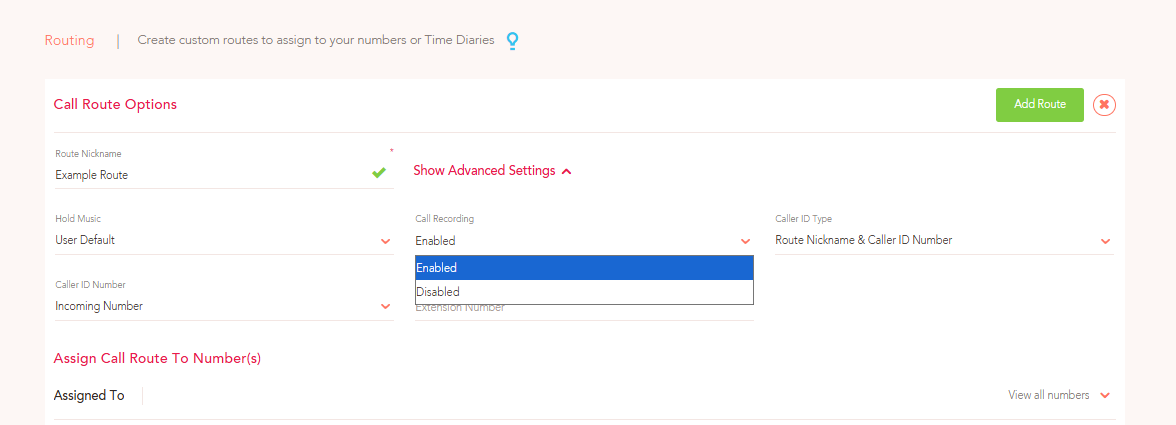
If you require a “Custom” set up, you can use the following options within the User / Routing settings:
User:
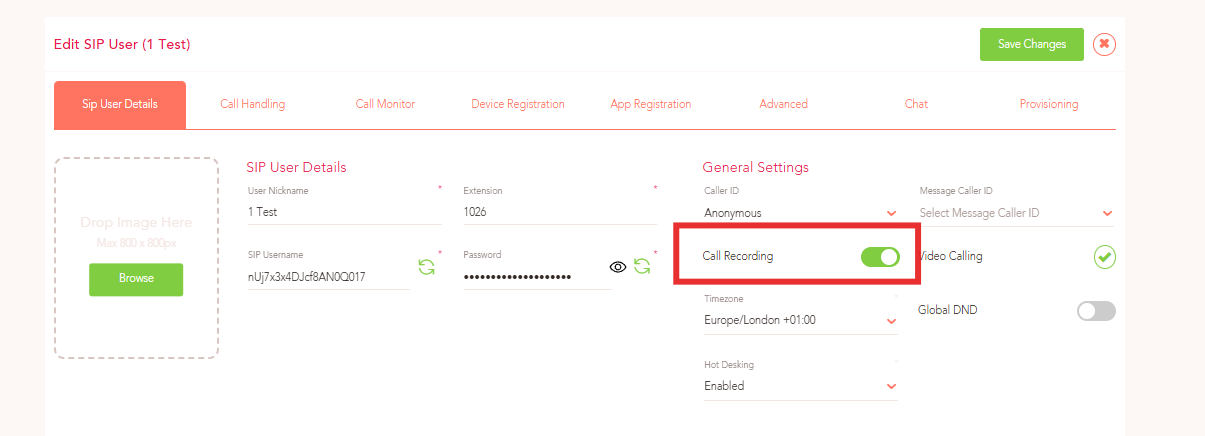
Route (Expand “Show Advanced Settings”):
NOTE - Enabling Call Recording will start recording calls from that point onwards, it will not back track on calls.