How do I use inbound and outbound call statistics?
Call statistics allow you to see the inbound and outbound calls made and received by users and the inbound queue statistics.
You can see:
- Total Calls- Unanswered Calls
- Answered Calls
- Average Duration
- Total Duration
How do I see Inbound User Statistics?
1: Go to the Voice Tab
2: Select Calls
3: Select Inbound or Outbound Statistics
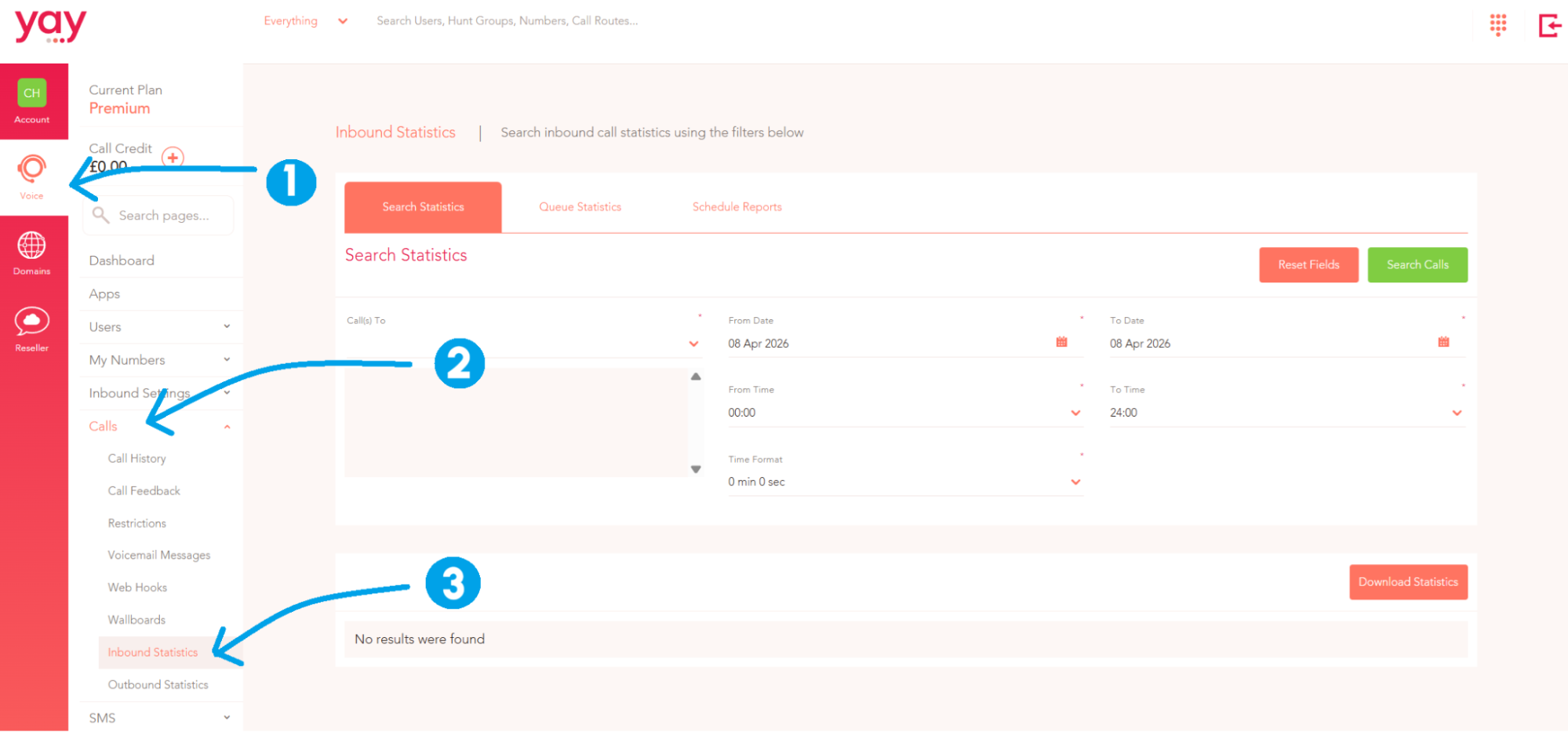
Once there you can then see the statistics of the option you chose by:
1: Select the user(s) from the 'calls to' drop down. You can either select a user, hunt group, or wallboard, which will show all users within the selection. Multiple options can be selected.
2: Next, you will need to select a date range that you want to view, by choosing the dates to and from. Following this, select the time frames that you want to show the statistics within.
3: Confirm this selection by clicking 'Search Calls'.
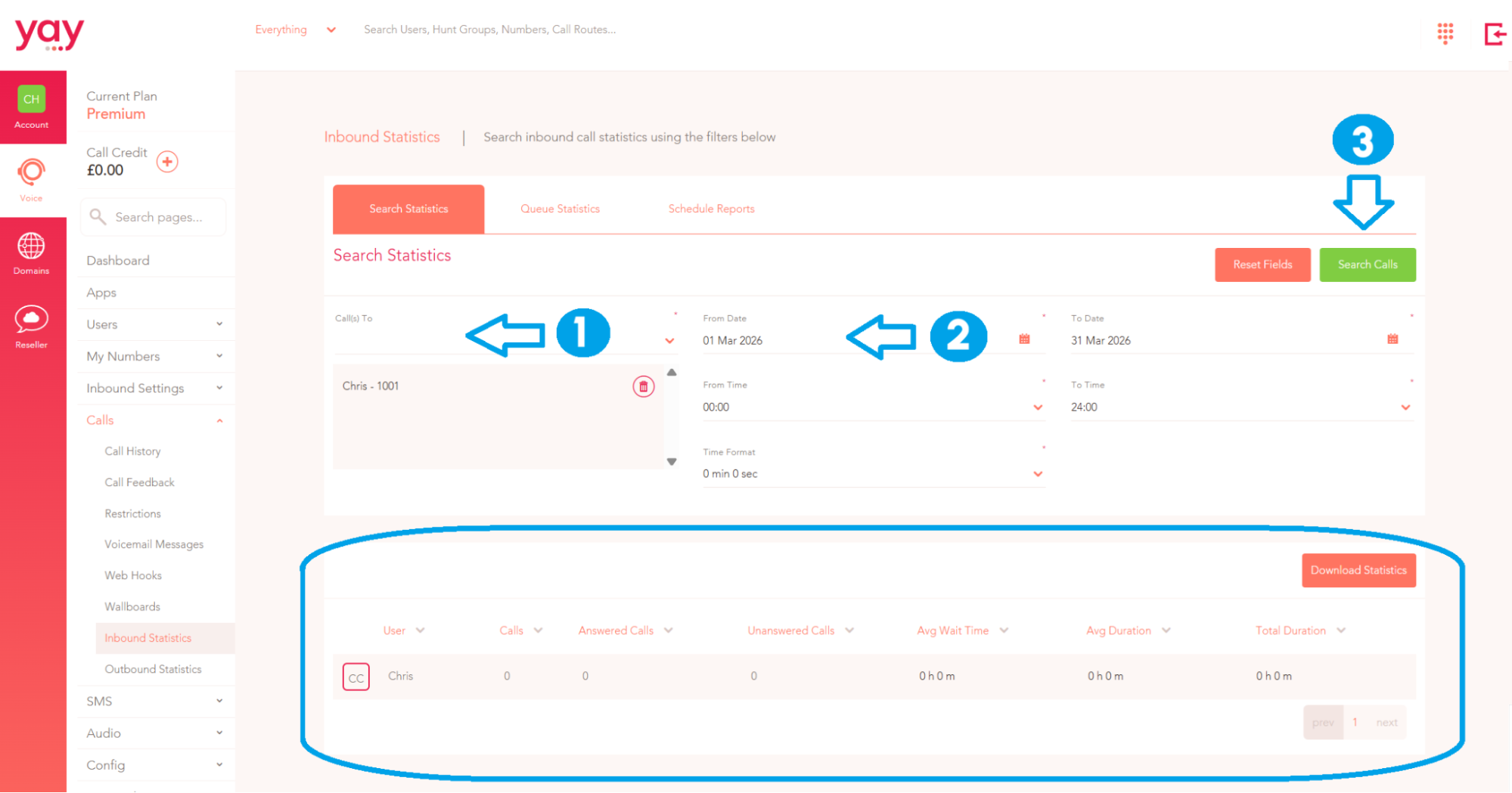
You will then see the statistics for every selected user(s) or Hunt Group in the space below. From this point, you can download the statistics to your local files on your device.
How do I view Queue Statistics?
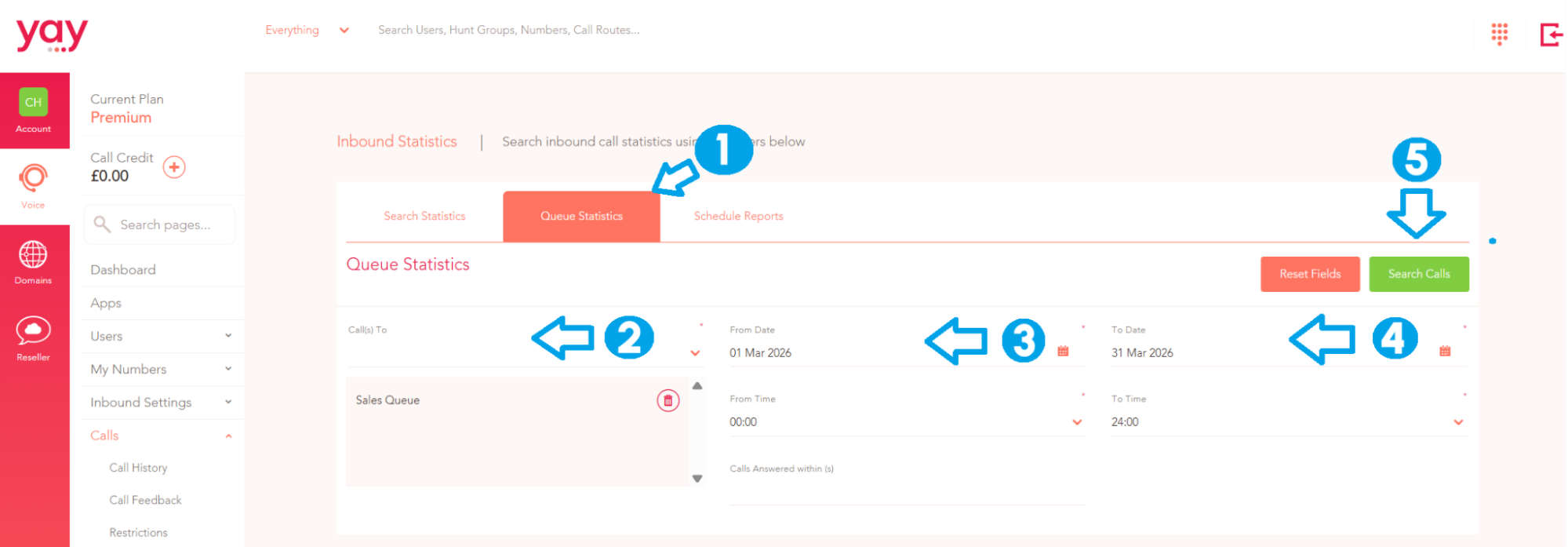
1: Go to the Voice Tab, select Calls then Inbound - click on the Queue Statistics tab.
2: Select the queue(s) from the 'calls to' drop down. Multiple queues can be selected.
3/4: Next, you will need to select a date range that you want to view, by choosing the dates to and from. Following this, select the time frames that you want to show the statistics within. To view calls answered within a certain amount of seconds add the seconds in the Call Answered Within (S) section.
5: Confirm this selection by clicking 'Search Calls'.
You can see:
- Total Calls
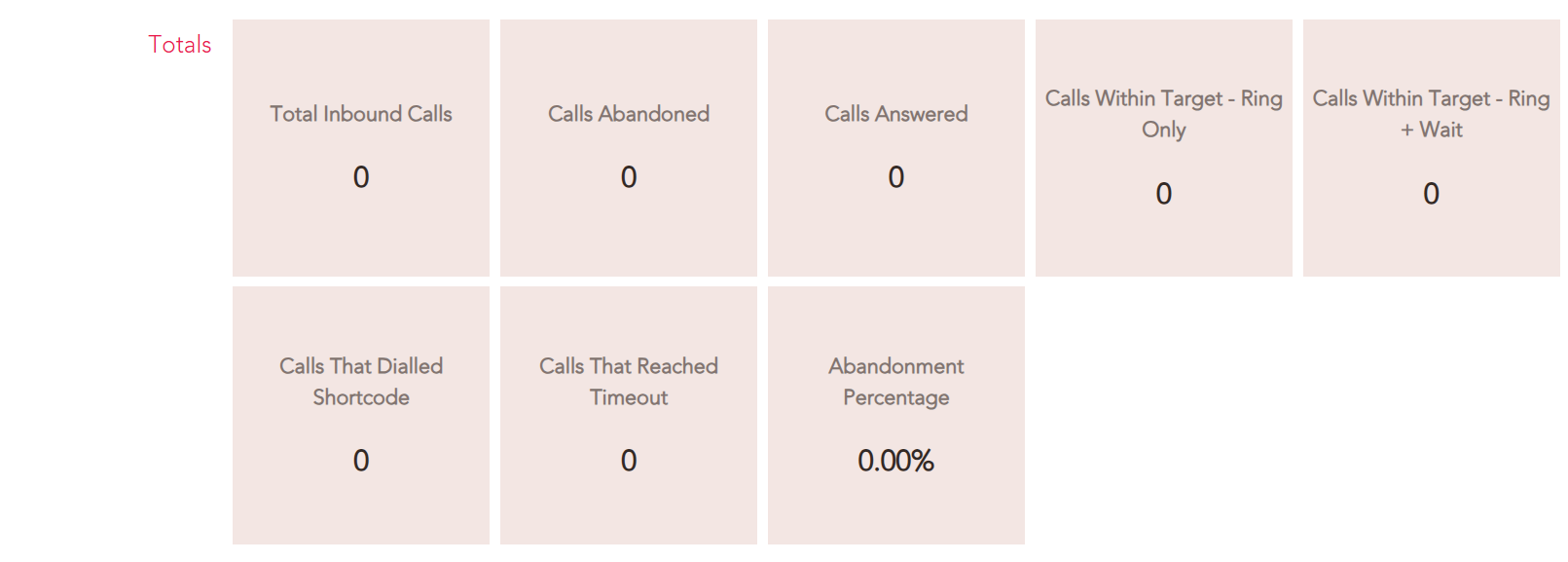
- Total Duration

- Talk Duration

- Ring Duration

- Wait Duration

- Agent Missed Calls

- Last Call

How do I schedule a report?
1: Go to the Voice Tab, select Calls, then Inbound or Outbound Statistics - click on the Schedule Reports tab.
2: Give the report a nickname, select the frequency of the report, then select what statistics to include from the drop down, this can be User(s) or Hunt Group(s). Then Choose where to email the report. Multiple email addresses can be added and you can select an email delivery time for each email address you have added.
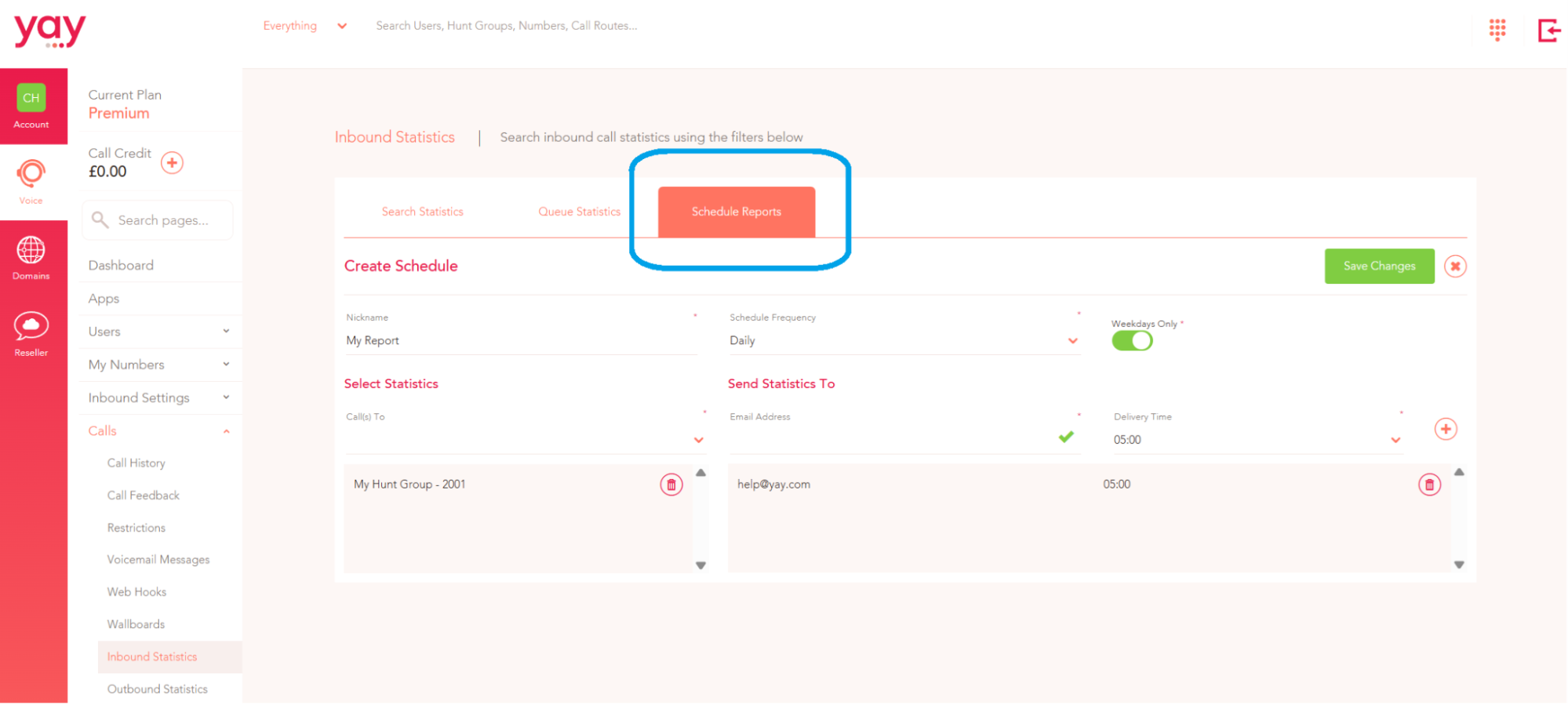
3: Click Save Changes.
Regular reports will now be set up to come to your designated email addresses at regular intervals that you specified.