What is Call Feedback?
Call feedback is a way of taking post call notes automatically within the Yay.com desktop app that can be used with a CRM integration of your choice.
To make use of this feature, you'll want to enable Call Feedback on a per user basis.
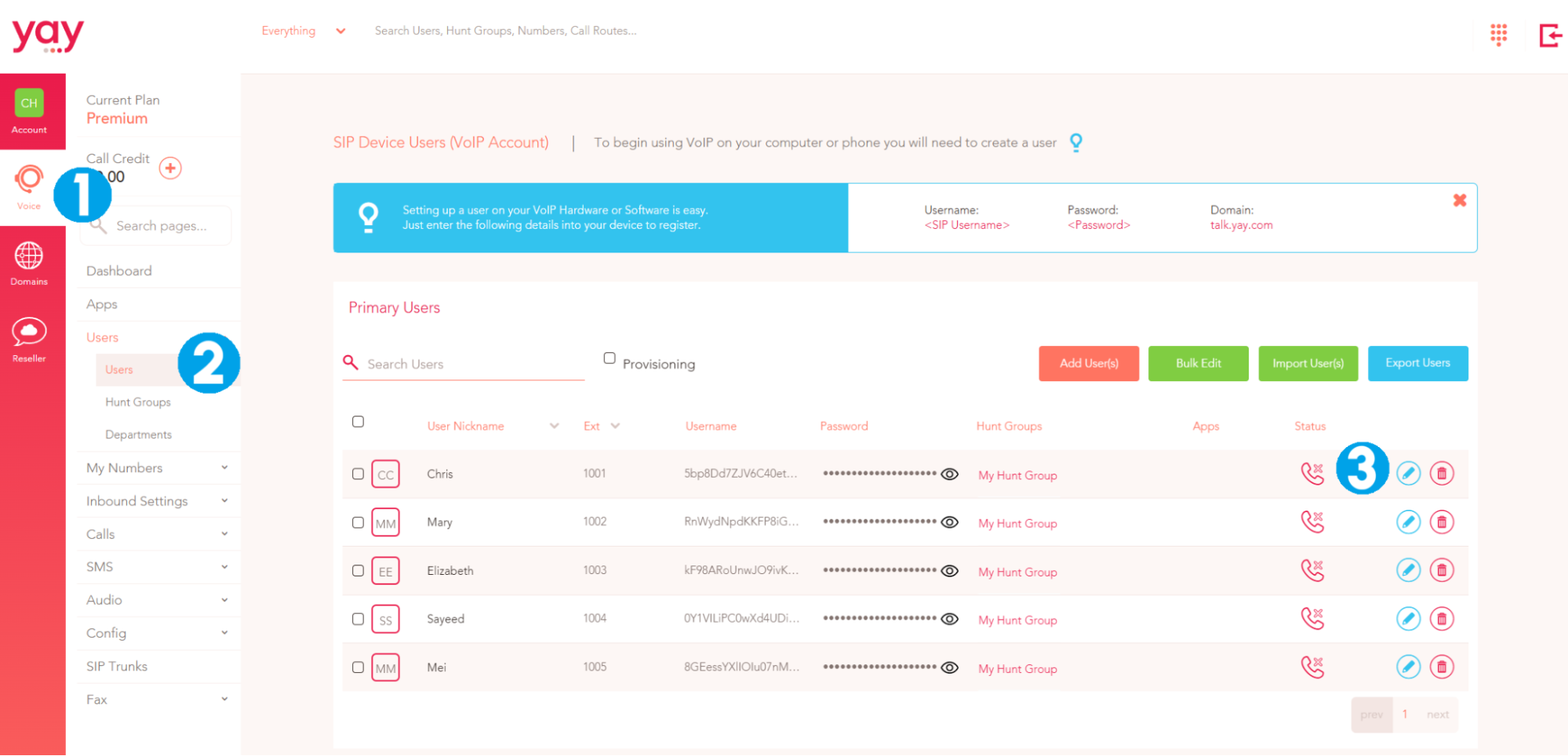
1. Click on the Voice option to the far-left
2. Go to Users
3. Then click the blue Edit button (pencil), next to the user you want to collect feedback from.
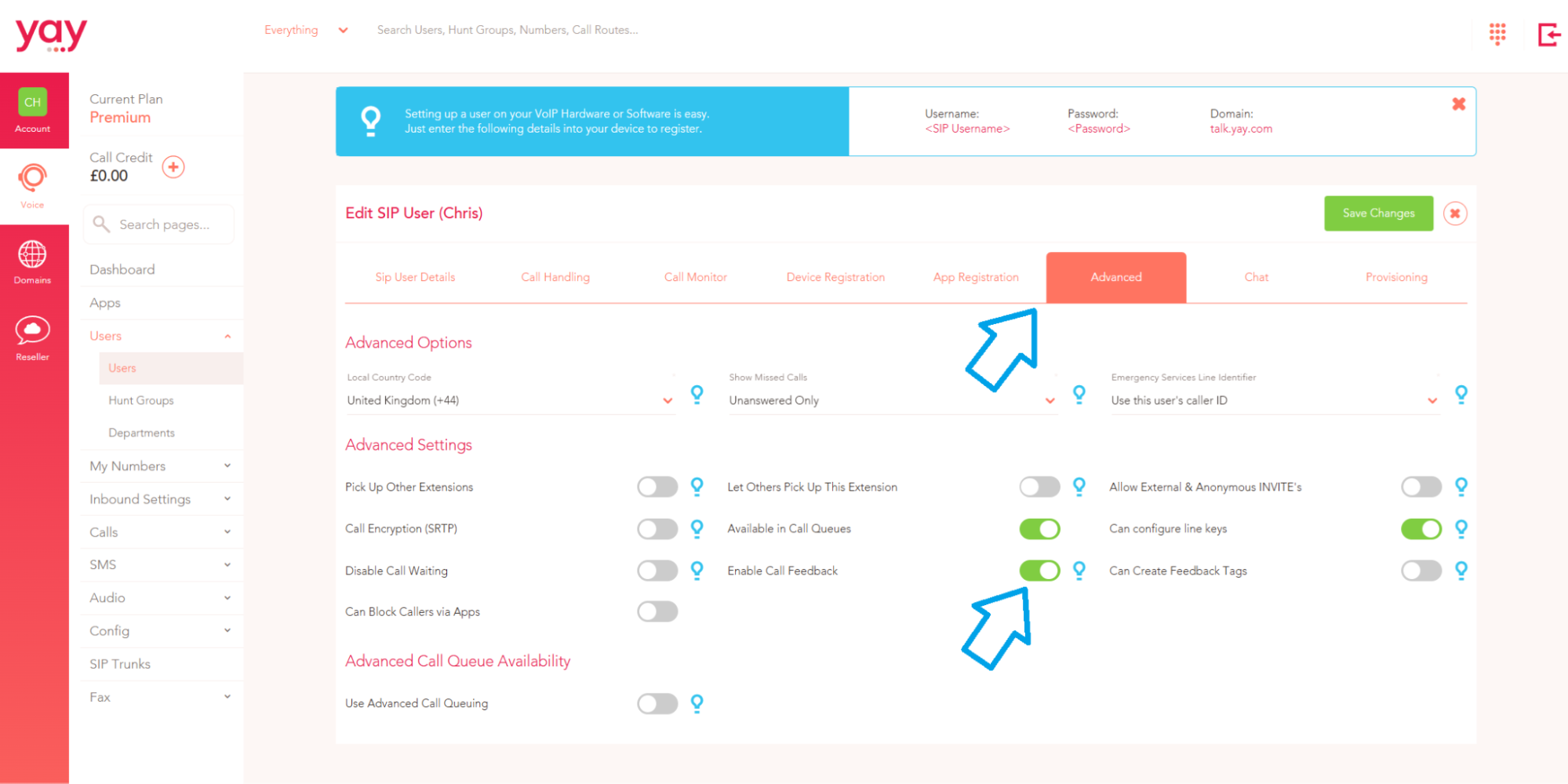
Then navigate to the Advanced tab to the right hand side of the User details and toggle the Enable Call Feedback setting to on.
Once this feature is enabled, a pop-up will appear at the end of each call on the Yay.com Desktop application. This pop-up allows the user to select a tag from the dropdown list, take notes about the call, and choose an emoji to represent the caller's general mood.
Once a call has ended, the screen below will be a pop-up and allow the user to provide feedback. Add a tag using the drop-down (Tags are created in the Call Feedback area of the Admin Dashboard).
You can also allow Users to create their own tags in the app by switching on Create Feedback Tags in the users Advanced settings.

The user can then leave a note and select an emoji (optional). They just need to click the Submit button when done.

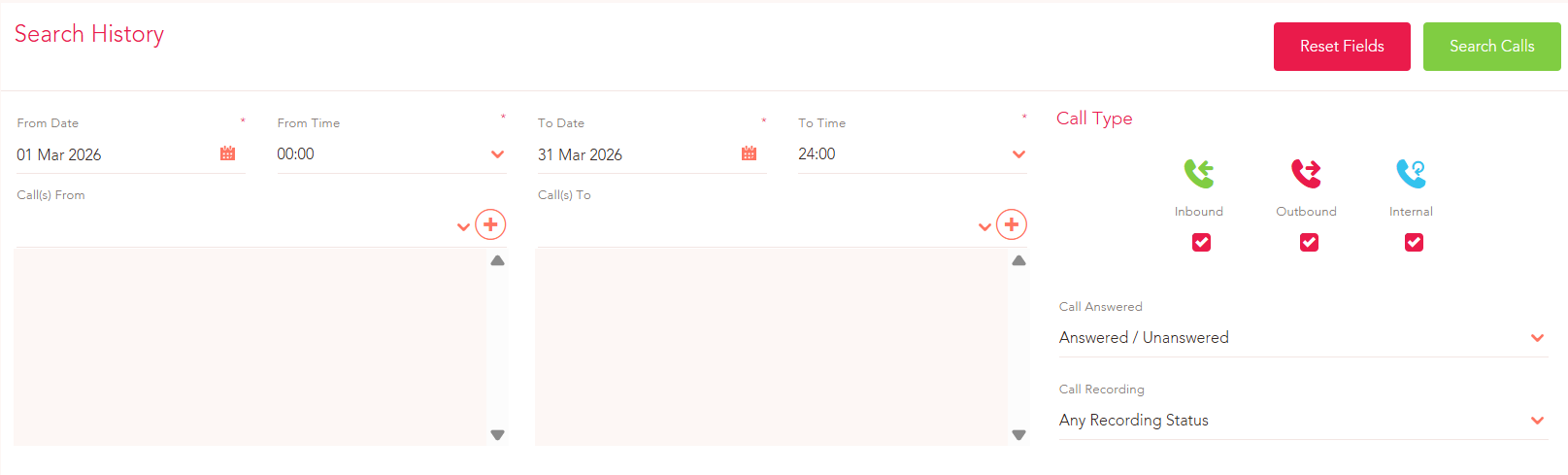
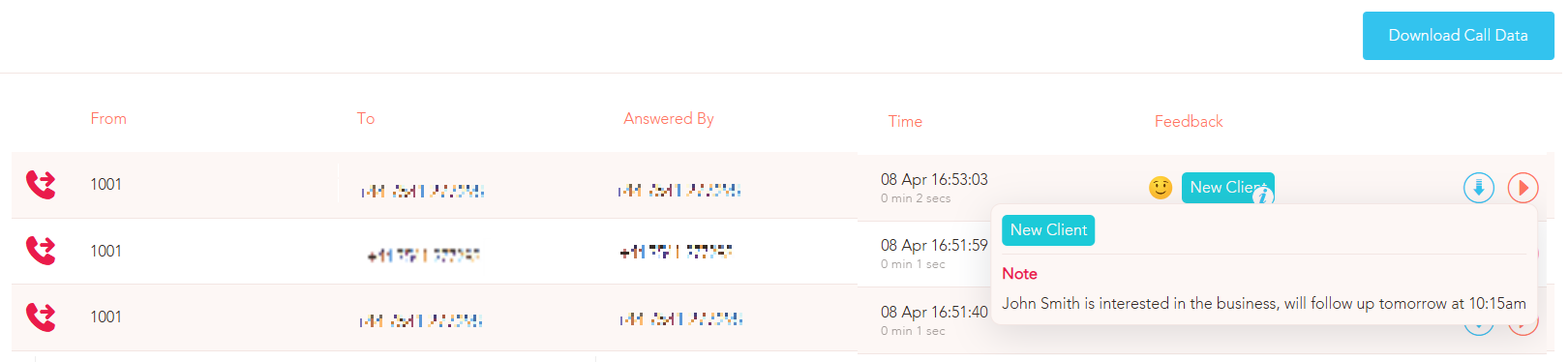
This data will be visible in the Admin Dashboard under Voice > Calls > Call Feedback. Hovering over the ‘i’ icon will allow you to read the note. The feedback data can be downloaded as a csv. by clicking the Download Call Data button.
You can also filter the call feedback information at the top of the screen, so you can easily search or identify a specific call you are wanting to see.