How do I add a Remote Phone Book to a Yealink Deskphone?
To configure a remote phonebook to a Yealink Deskphone via the Graphical User Interface (GUI)
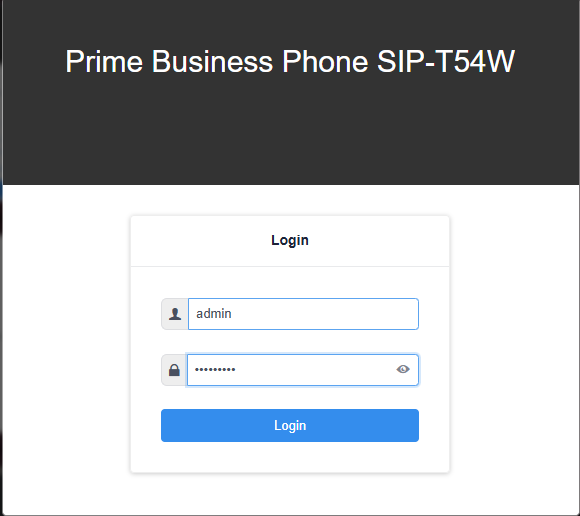
1. Add the deskphone's IP address into a browser and login
2. Username & Password: admin
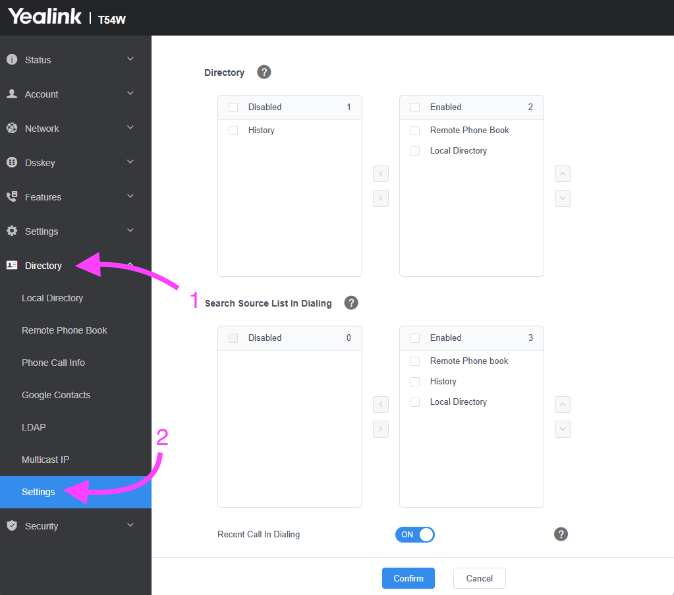
3. Navigate to Directory > Settings
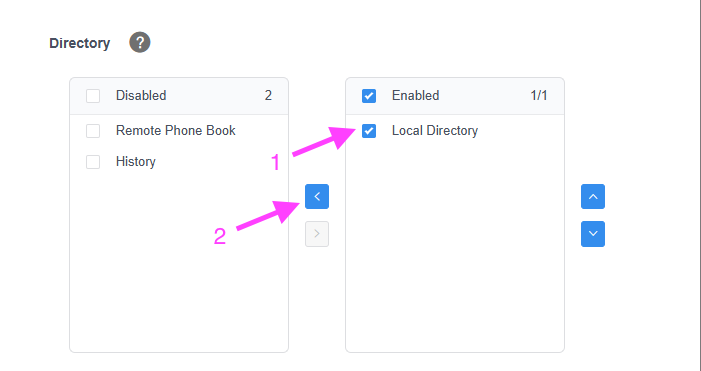
To replace the Local Directory with the Remote Phone Book:
1. Select the Local Directory by clicking its checkbox.
2. Press the blue-highlighted left arrow to disable the Local Directory.
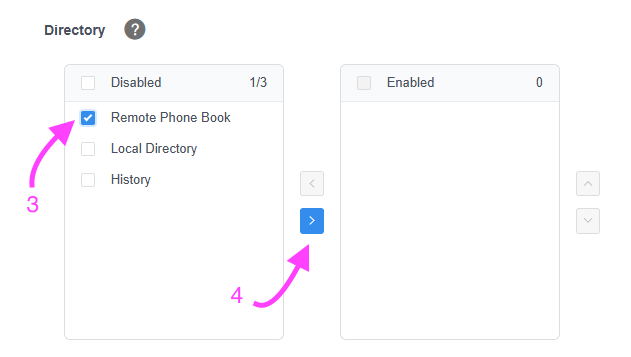
3. Click the checkbox next to the Remote Phone Book.
4. Use the right arrow to enable the Remote Phone Book.
5. Click Confirm to save these changes.
6. Navigate to the Directory > Remote Phone Book.
7. Enter the Remote URL and Display Name of the phonebook you created in the Yay Dashboard.
When you create a phonebook in Yay, a URL is automatically generated. Copy and paste this URL into the designated section of the GUI, enabling users to view the stored contacts.
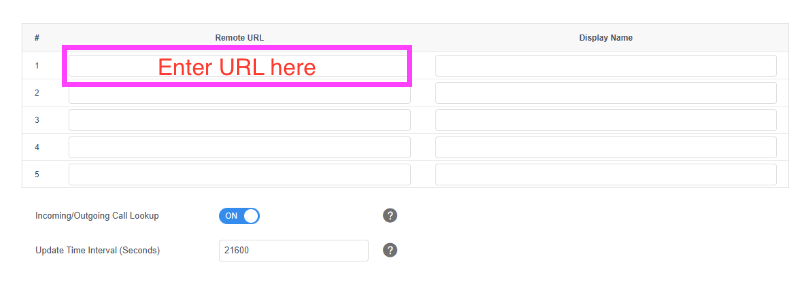
Up to 5 Remote Phone Books can be added using their URLs. Users only need the access URL of the remote phone book. The IP phone will connect to the remote server, download the phone book, and display the entries on the phone's user interface.
8. Click Confirm to save the changes.