How do I configure a Polycom VVX410?
In order to configure a Polycom VVX 410 device, you will first need to determine what the IP address for the device is, so that you can access it from a web browser.
You can do this in one of two ways:
You can use the buttons on the phone to access your IP address by following these steps: From Home view, select Settings > Status > Platform > Phone, and use the arrow keys to navigate to your phone’s IP address.
You can also use a network scanning utility that will scan your network and list all the devices and their IP's available for you to use.
Once you have determined the device's IP Address, open a new browser window and enter this IP into your URL bar and you will access the Polycom configuration utility in your browser.
You can select to either log in to the admin or user interface but for this example we are using the admin option.
Your default login credentials for this (if needed) should be:
- Username: admin
- Password: 456 (for other models this could also be 123 or admin)
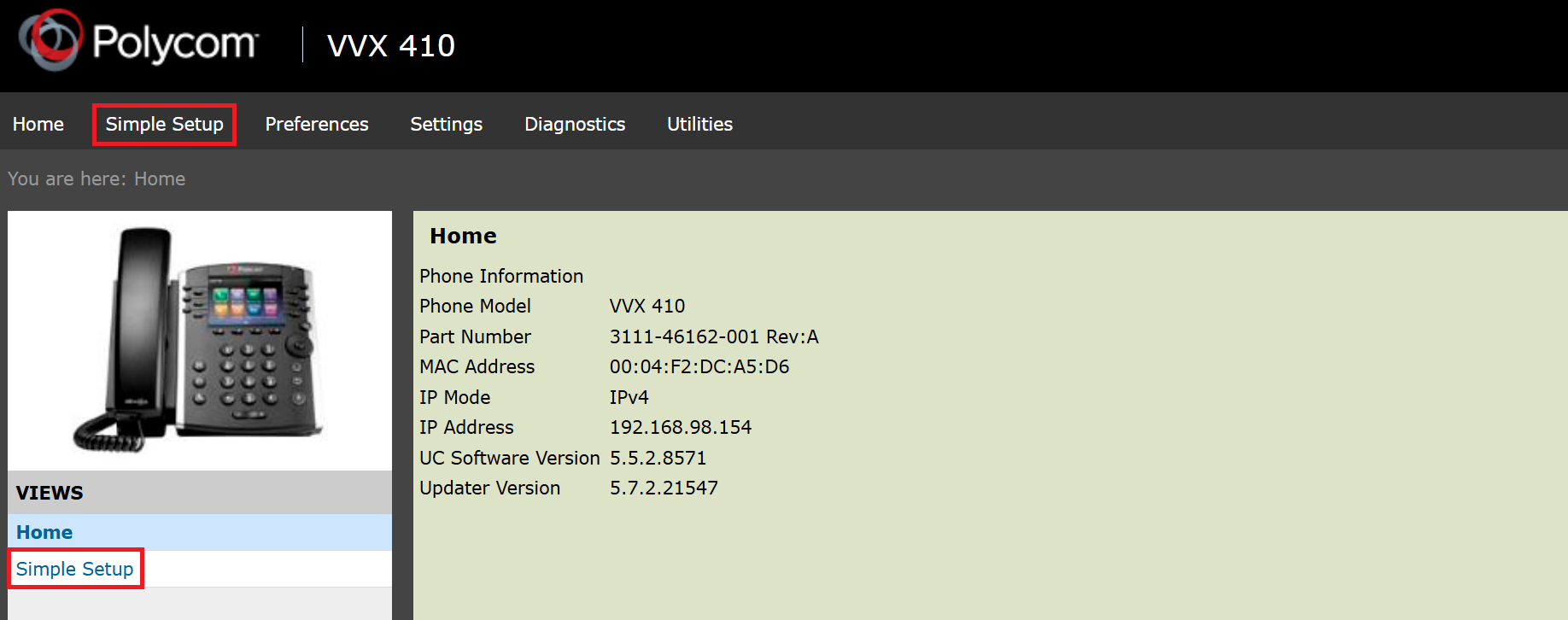
Once logged in, navigate to Simple Setup (either button highlighted will work).
Note: While the images below reference the Polycom VVX410, for other Polycom VVX4xx and VVX3xx models, the setup should be the same or very similar.
Expand the menus labelled: SIP Server & SIP Line Identification.
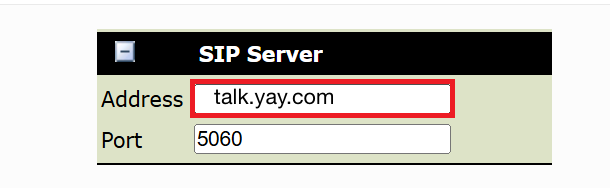
In your Yay portal, navigate to Dashboard > Voice > Users > Edit (pencil icon) > SIP User Details. On this page you will find your SIP username and SIP password. The SIP server/domain will always be talk.yay.com.
Back in the device's web interface, under the SIP Server section, input the SIP server/address details as highlighted in the image below:
Under the SIP Line Identification section, input the SIP Username & Password as highlighted in the image below:

You can also edit the Display Name & Label fields as required at this point too.
Finally hit Save after which the device will register and show in the Yay portal under the user's Device Registration section.
Note: If the device has a warning about time synchronization being out of sync, please also select the pool.ntp.org option in the Time Synchronization section and hit Save.
