How can I update my users in bulk?
There are two methods that can be used to edit and update the information of users in bulk:
- Using the Bulk Edit button.
- Using the Import/Export buttons with a CSV file.
Each method has its own uses but both can be very quick and effective when needing to update user information in bulk.
For both methods, in the Yay portal, you’ll want to navigate to Voice > Users. This section has all of the account’s users on it.
To see how to invite users in bulk, please see Method 2.
Method 1: Bulk Editing Users
1. Press the Bulk Edit button once; this will select all of the users, including those across multiple pages - if you do not want to edit every user then you should manually select the required users by clicking the checkbox next to each one.
2. Once the required extensions have been selected, press the Bulk Edit button a second time to bring up the editing menu.
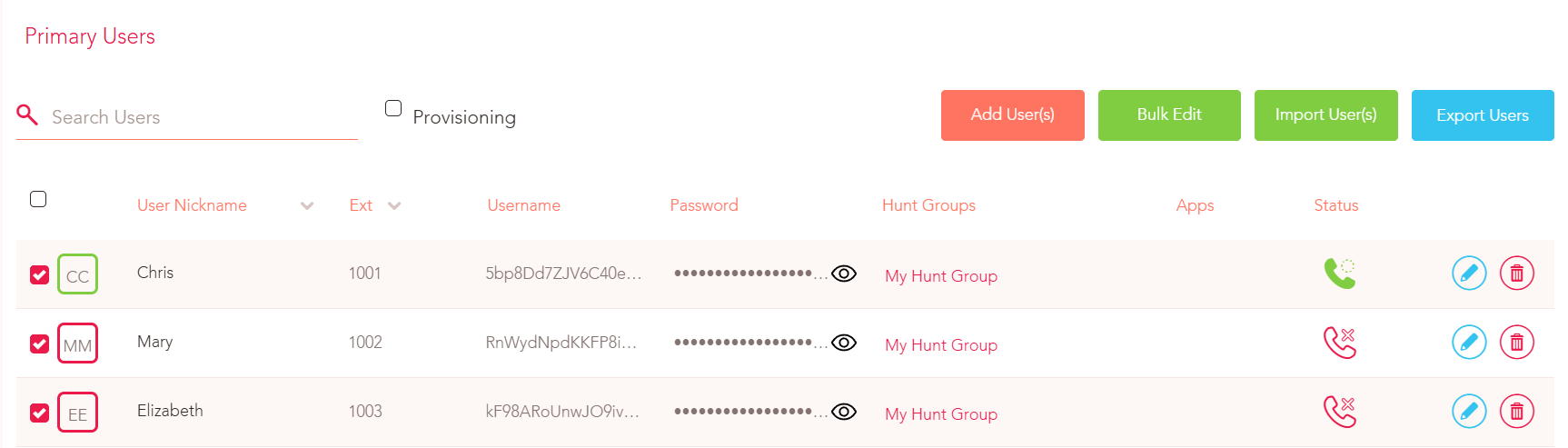
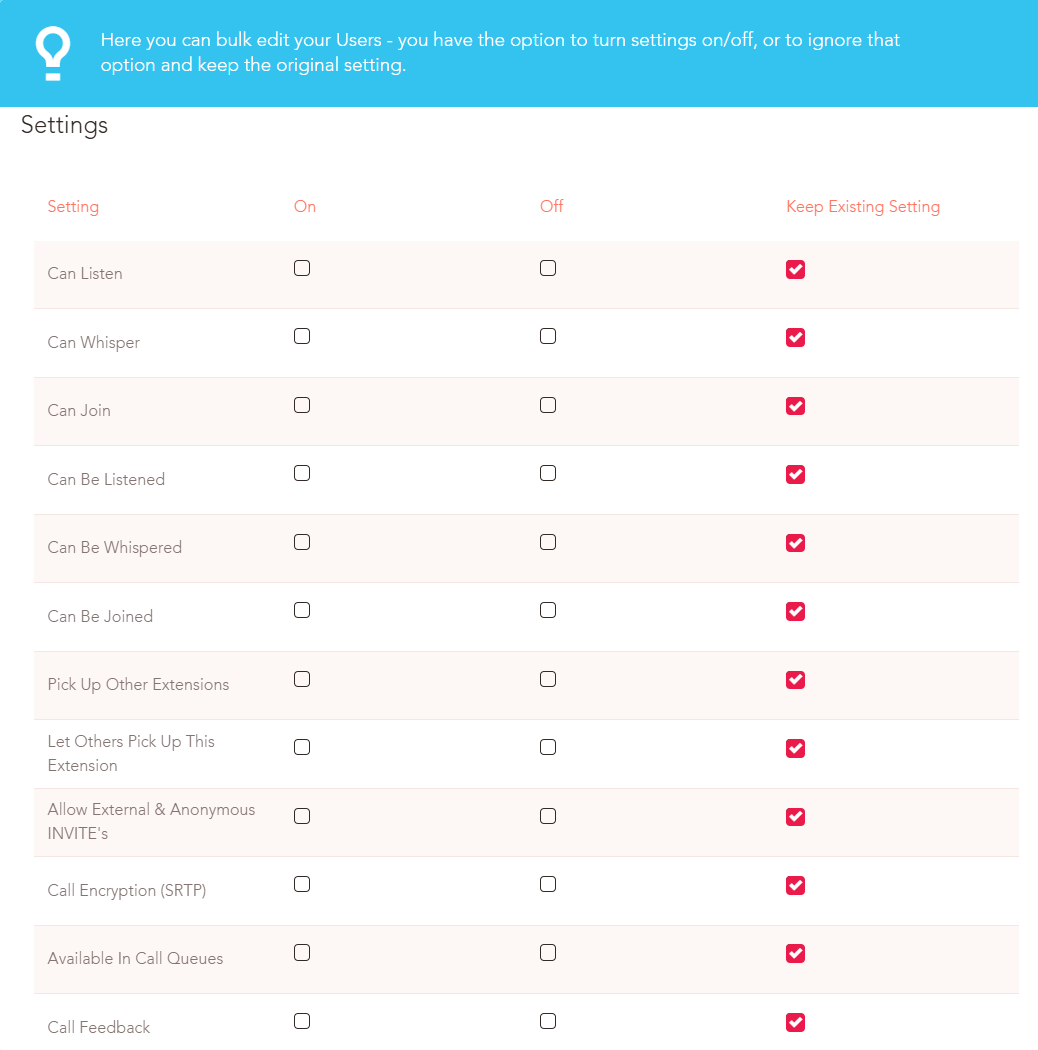
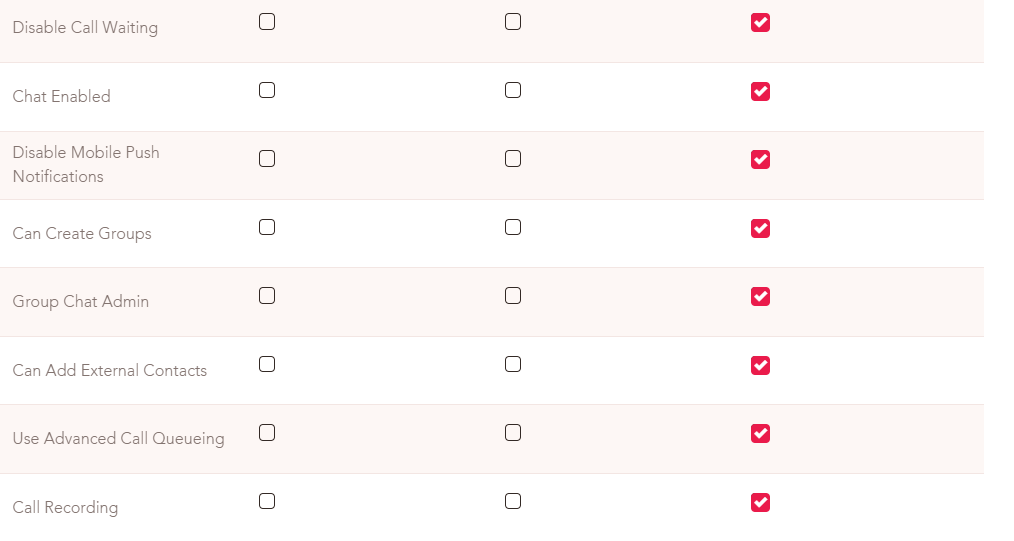
3. There are a range of Settings that can be turned On, Off or set to Keep Existing Setting.
4. There are a range of Advanced Settings that can be adjusted by selecting the required option from the drop-down menu (e.g. a specific Caller ID or Hold Music) or set to Keep Existing Setting.
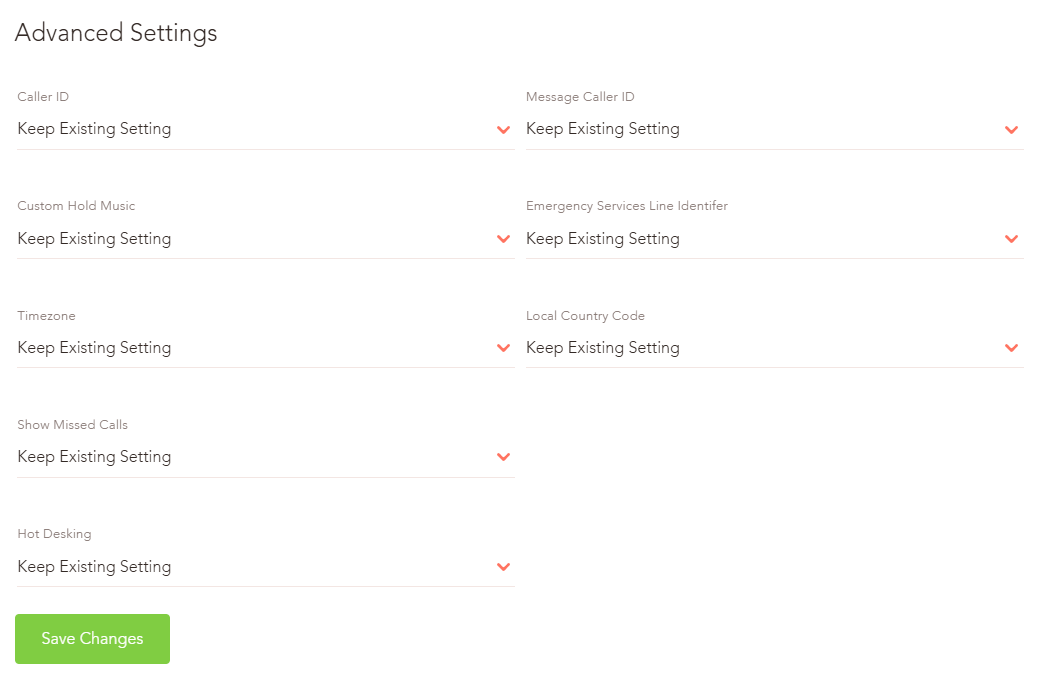
5. Hit the Save Changes button at the bottom of the menu at which point any changes will be applied to all of the selected users.
Note: for larger accounts, this process may take longer to complete.
Method 2: CSV Import/Export
1. Hit the Export Users button which will download a CSV file containing the current configuration for all users on the account.

2. When you open the file you will have a range of columns.

Coulmns A-K:
User ID - This is automatically created by the system when the User is added to the account and cannot be changed. The User ID can be useful however for assigning users to hardware devices in bulk.
Nickname - You can edit the nickname of a user.
Extension- You can edit the extension number of a user.
SIP Username - You can edit a user’s SIP username.
Password - You can edit a user’s SIP password.
Caller ID* - You can change the default Caller ID for a user.
Emergency Line* - You can set the number the emergency services will use to identify this user during emergency calls.
Mailbox - You can assign the Primary Mailbox for a user (useful if you want to assign the same Primary Mailbox for multiple extensions). Tip: to get the mailbox’s UUID you should assign it to a user prior to exporting the CSV file.
Hold Music* - You can assign Custom Hold music for a user. Tip: to get the UUID of the audio playlist you should assign it to a user prior to exporting the CSV file.
Recording*- You can set whether a user has Call Recording turned on or off.*Note: the global call recording setting must be set to Custom to allow this.
Call Encryption* - You can set whether Call Encryption (SRTP) is enabled or disabled for a user. Note: If using a desk phone, the transport type should be updated to TLS and port changed to 5061 in conjunction with this change.
* These options can also be changed using the Bulk Edit button.

Columns L-T are all options that are also present in the Bulk Edit menu, though they can be edited via this file to achieve the same effect.
Bulk Inviting Users to the App:
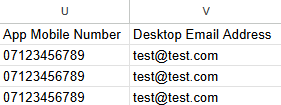
The last two columns, U & V are very useful if you need to send out app invitations in bulk for the mobile and desktop versions of the app.
Simply enter the mobile number and/or email address for each user and when the file is imported back in, the invitations will be sent out.
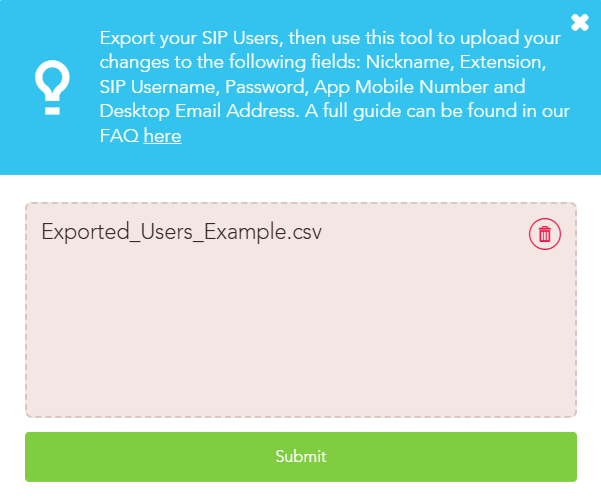
Once you have made all the required changes to the CSV file, go back to the Users section in the Yay portal and hit the Import User(s) button.
Click the Browse button on the pop up window and upload the edited version of the CSV file.
Finally hit the Submit button at which point the system will start updating the configuration changes for each user - depending on the size of the account this could take a minute or two.
If you need any further help today, please don't hesitate to contact our friendly Support team on 0330 122 6000 or by email at help@yay.com!